2025’s best visual feedback platforms for faster design reviews
Are you tired of juggling PDFs, emails, and outdated artwork files? Our roundup of the 10 best visual feedback tools for packaging in 2025 will show...
PDFs are still one of the most common file formats used for reviews, approvals, and collaboration. Whether you’re reviewing a design, correcting copy, or approving packaging artwork, knowing how to annotate a PDF efficiently can save time and prevent costly mistakes.
In this guide, we’ll cover:
How to annotate a PDF using common tools
How to markup a PDF and add comments
Best practices for collaborative PDF reviews
Why packaging teams need more than basic PDF annotation tools
To annotate a PDF means adding information on top of the document without changing the original content. Annotations typically include:
Comments or sticky notes
Highlights and underlines
Drawing or markup tools
Text corrections or suggestions
Teams use PDF annotation to give feedback, request changes, and document decisions.
Adobe Acrobat Reader is one of the most widely used tools to comment on a PDF.
You can:
Highlight text
Add comments and sticky notes
Draw shapes or arrows
Save and share the annotated file
This works well for individual reviews, but managing feedback from multiple reviewers can become difficult.
Modern browsers let you quickly markup a PDF without installing extra software.
You can:
Highlight text
Add simple drawings
Save a new version of the PDF
This option is fast and convenient, but annotations are often limited and easy to lose across versions.
Phones and tablets allow basic PDF annotation through built-in markup tools or apps like Adobe Acrobat or Xodo.
These are useful for quick reviews, but not ideal for structured team collaboration or approvals.
When multiple people are involved, PDF annotation can quickly become messy. To avoid confusion:
Always identify who left each comment
Avoid sending multiple annotated versions by email
Keep feedback consolidated in one place
Track changes and decisions over time
Without a centralized system, teams often lose comments, overwrite changes, or approve the wrong version.
For packaging teams, annotating PDFs is not just about comments — it’s about control, traceability, and compliance.
Packaging teams often need to:
Mark up artwork PDFs for regulatory, legal, and brand checks
Keep a full history of changes and approvals
Know exactly who approved what — and when
Avoid using outdated or incorrect artwork
Relying on basic tools or email-based feedback creates risks, especially when packaging errors can lead to recalls or reprints.

This is where approval software like Cway software makes a real difference.
Instead of manually trying to manage annotated PDFs, packaging teams can:
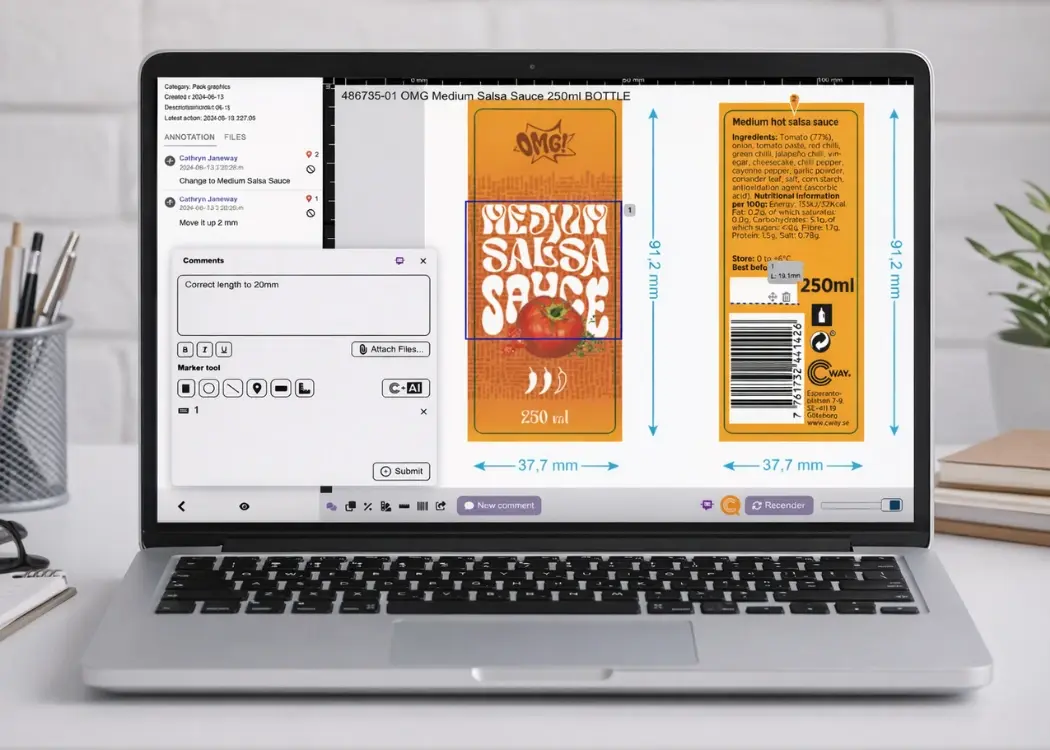
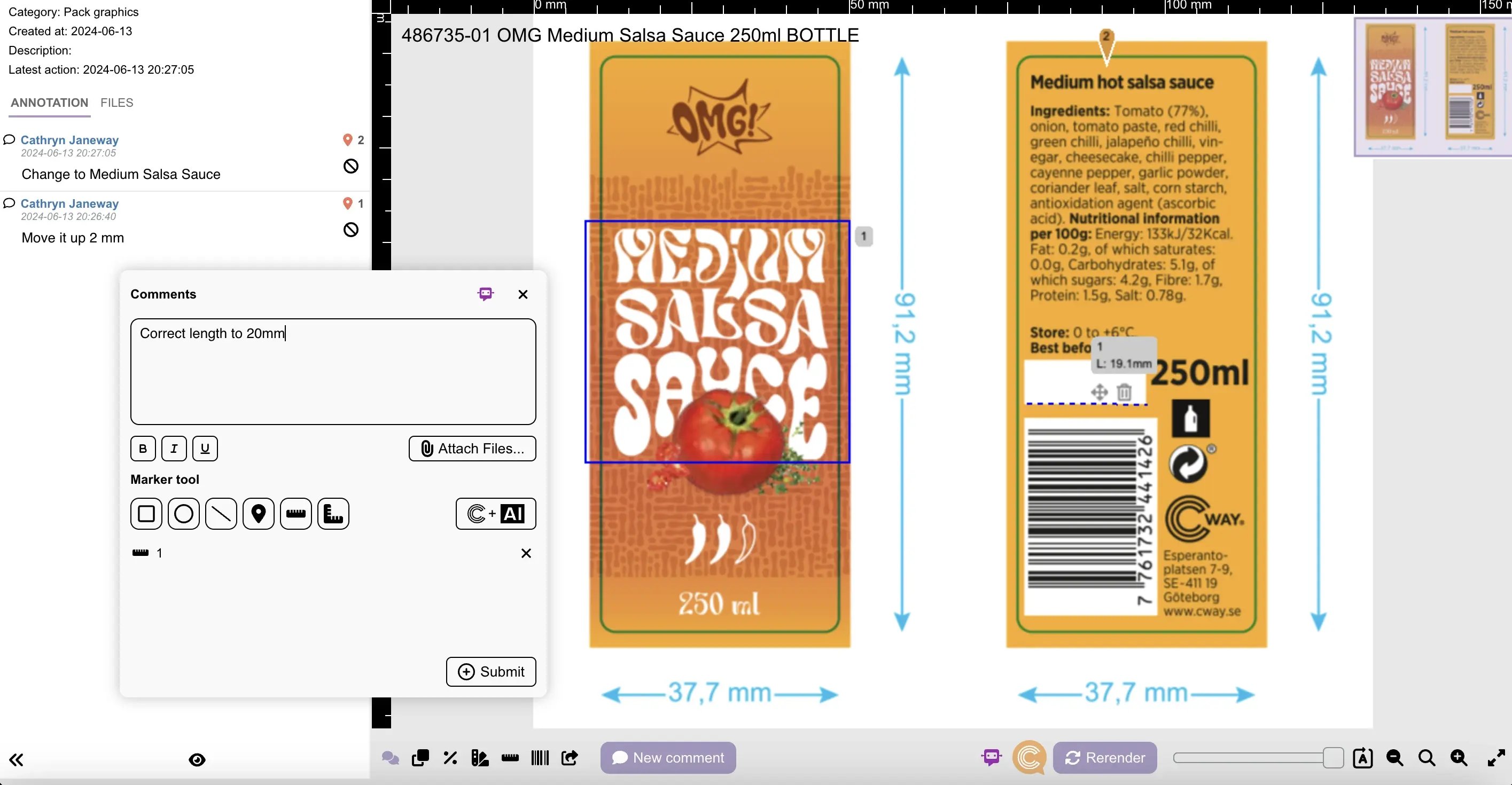
Annotate and comment directly on artwork files
Maintain a clear audit trail of changes
Collaborate across teams without long email threads
Cway software is designed specifically for artwork workflows, helping packaging teams move faster while staying compliant and in control.
Learning how to annotate a PDF is essential for any team working with documents. But as collaboration becomes more complex — especially in packaging and artwork management — basic tools are no longer enough.
If your team needs to markup PDFs, comment on artwork, and keep a full history of changes and approvals, a dedicated approval solution like Cway software can help you work smarter and reduce risk.
To annotate a PDF means adding comments, highlights, drawings, or notes on top of the document without changing the original content. Annotations are commonly used for reviews, feedback, and approvals.
You can annotate a PDF for free using tools like Adobe Acrobat Reader, web browsers such as Chrome or Edge, or built-in markup tools on iOS and Android devices. These tools allow basic highlighting, comments, and drawing.
To markup a PDF:
Open the file in a PDF reader or browser
Select markup tools such as highlight, pen, or shapes
Add notes or visual feedback
Save the annotated version
Markup is often used to point out changes or corrections visually.
To ensure others can see your comments:
Use the comment or annotation tools (not image edits)
Save the PDF after adding comments
Share the annotated file, or use a collaboration tool that keeps comments centralized
For team workflows, sharing comments via email can quickly become confusing.
Packaging teams benefit from using dedicated approval software like Cway software, which allows teams to annotate PDFs, manage versions, and keep a complete history of comments and approvals in one centralized platform.
Are you tired of juggling PDFs, emails, and outdated artwork files? Our roundup of the 10 best visual feedback tools for packaging in 2025 will show...
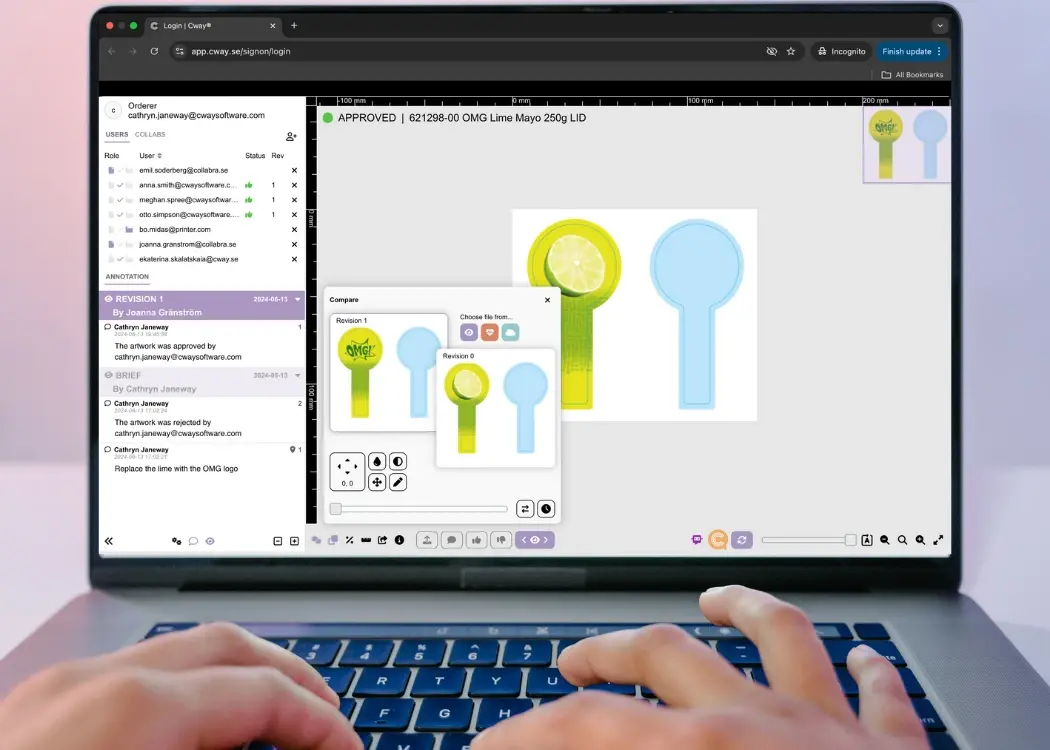
Comparing packaging designs is a critical part of brand, compliance, and regulatory work — but not everyone has access to Adobe or graphic design...
Ever tried approving packaging artwork by email? It's a game of "Which version are we on again?" followed by "Oops, that wasn’t the final one"—and...