
The Compare tool allows you to view two artworks side by side to identify differences between files or versions.
Step-by-Step Instructions
1. Open a file in Cway Viewer
Open the artwork you want to review in the Viewer.
2. Click Compare
In the Viewer toolbar, click Compare to open comparison options.
3. Select a file or version
Choose the file or version you want to compare with the current artwork.
4. Select Split Screen
Choose Split Screen view to display both artworks next to each other.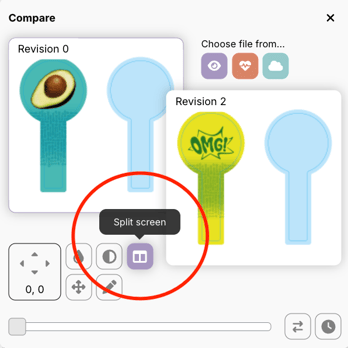
In This Mode, You Can
-
view two files side by side
-
use synchronized zoom and navigation
-
easily spot differences between versions
-
review designs with more precision