
Cway makes it easy to organize users into teams for streamlined collaboration. Here’s a quick guide to creating and using teams in Cway:
Create a New Team*
1. Open the Users App
Start by navigating to the Users app in the main menu.

2. Go to the Teams Tab
At the top of the window, switch to the Teams tab.
Here you’ll see all existing teams and their approval settings.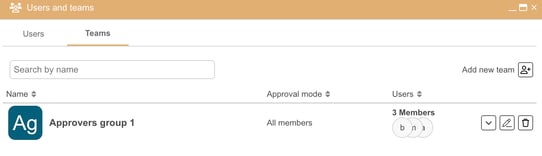
3. Click Add New Team
A new window will open where you can create your team.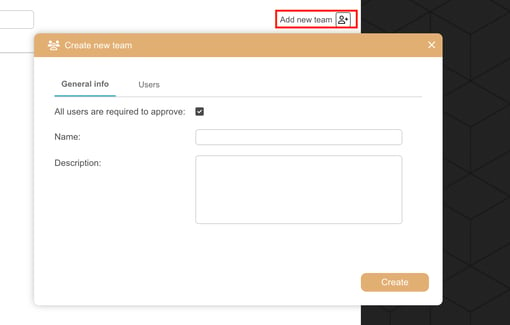
4. Add the Team’s Name and Description
Give your team a clear name (e.g., “Marketing Approvers,” “Regulatory Team,” etc.).
Optional: Add a description to explain the team’s purpose.
5. Set the Approval Behavior
You’ll see a checkbox labeled:
“All users are required to approve”
This setting controls how the team behaves in the approval workflow:
✔ If the checkbox IS checked - all team members must approve the task before it moves forward.
✔ If the checkbox is NOT checked - one team member can approve on behalf of the entire team.
Once one person approves, the task disappears for everyone else.
Choose the mode that best matches your internal approval process.
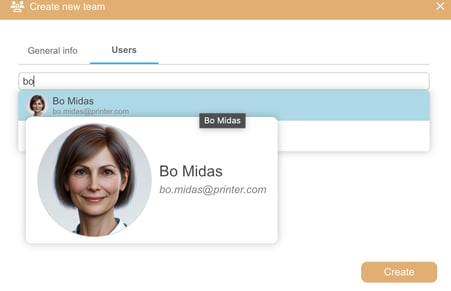
6. Add Team Members
Go to the Users tab inside the team creation window.
-
Search for users
-
Select the people you want to add
-
All selected users will be part of the team
7. Click Create
Your team is now saved and ready to use.
Using Teams
-
Assign teams to artworks to give groups shared access and allow them to collaborate efficiently on reviews and approvals.
-
Use teams in Quick Share to send files or information to multiple people at once—without selecting users individually.
-
Apply team permissions in the Media Center to control folder access at a group level and streamline content management.
With teams, managing projects and communication in Cway becomes more structured and efficient!
* Only organization admin can create teams. After this, the organization admin can assign a team admin. To do this, go to edit mode and right-click to select.
Want more tips and tricks? Visit our YouTube channel where we have collected all of our short How To's. Subscribe to be the first to know when a new video is up.