
You can easily export your user data from the User App as a CSV file. A CSV (Comma-Separated Values) file allows you to open the user list in spreadsheet tools such as Excel, Google Sheets, or Numbers for further analysis and reporting.
Steps to Save the User List
-
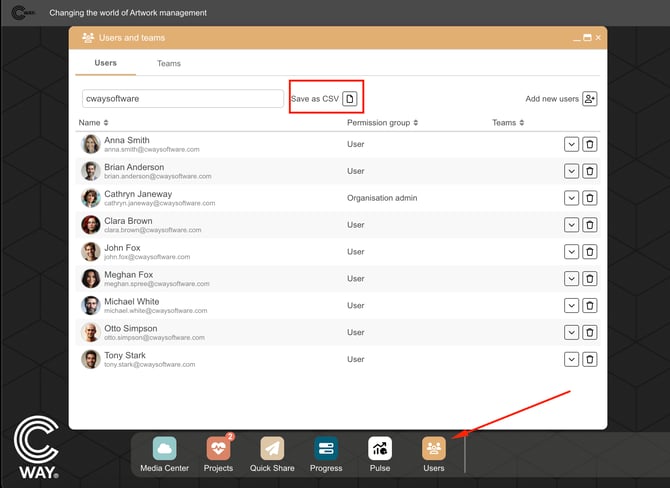
Open the Users App
-
Optional: Apply Filters or Search
-
If you want to export all users, skip this step.
-
If you only need a subset (for example, users from a specific group), type a keyword in the search bar.
-
The system will display only the users matching your search.
-
-
Save as CSV
-
Click on the Save as CSV button.
-
If you searched or filtered users, only the displayed list will be included in the export.
-
If no filter is applied, the export will include all users.
-
Important Notes
-
Full List Export: Clicking Save as CSV without searching exports all users.
-
Filtered Export: If you perform a search first, the CSV file will include only the selected users shown in the list.
Want more tips and tricks? Visit our YouTube channel where we have collected all of our short How To's. Subscribe to be the first to know when a new video is up.