
Actions help you track and complete specific workflow steps for each artwork — such as Send to Brand Studio 360 (Media Center), Digital proof, or External delivery.
Each action represents a step that needs to be completed during the artwork process.
All artworks can be assigned to one or more actions.
Managing Actions
-
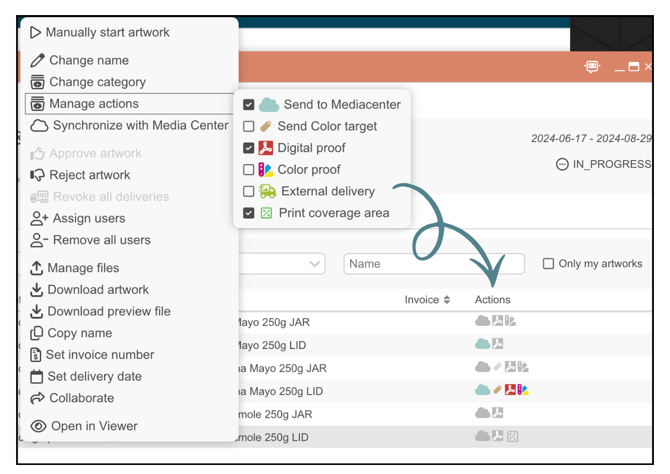
Right-click on the artwork and select “Manage actions.”
-
From the list, choose the actions that need to be done for that artwork.
These might include steps like Send to Media Center, Digital proof, or Color proof.
Performing Actions
-
Before an action is completed, its icon appears grey.
-
Once you’ve performed the task, click the grey icon to mark it as done.
-
The action will then turn colored, indicating it’s been completed successfully.
This simple visual system helps everyone see at a glance which actions are still pending and which are already done — keeping your artwork workflow clear and organized.
Want more tips and tricks? Visit our YouTube channel where we have collected all of our short How To's. Subscribe to be the first to know when a new video is up.