
Cway automatically extracts text from artwork files and runs spell checking to help you identify potential errors early in the approval process.
For newly uploaded artworks, text extraction runs automatically during upload.
For older artworks that were uploaded before this feature was introduced, text extraction can be triggered manually.
How Text Extraction Works
For New Artworks
When you upload a new artwork:
-
Text extraction runs automatically
-
Spell checking is performed immediately
-
The results are available in the Text tab
No manual action is required.
For Older Artworks
If an older artwork has not yet been analyzed, you will see an option to manually start text extraction.
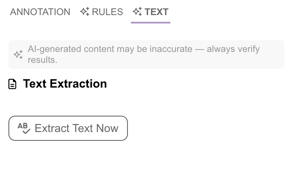 To do this:
-
Open the artwork in the Viewer
-
Go to the Text tab
-
Click Extract Text Now
The system will process the file and display the extracted text once completed.
This manual step is only required for artworks uploaded before automatic extraction was introduced.
Viewing Extracted Text
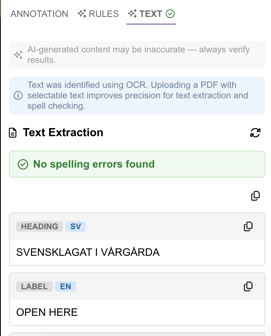 After processing:
-
All detected text is displayed in a structured format
-
Text can be selected and copied
-
Potential spelling issues are highlighted
The extracted content includes all detectable text elements within the artwork.
Spell Check Indicators
Checkmark on the Text Tab
When spell checking has completed successfully and no issues are found, a small checkmark icon appears on the Text tab.
This indicates that:
-
Text extraction has completed
-
Spell check has been performed
-
No spelling issues were detected
If spelling issues are found, they will be shown inside the Text view instead.
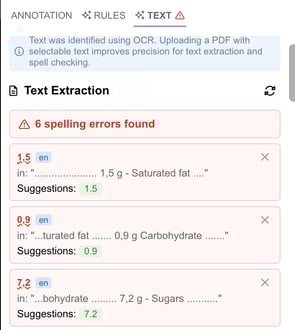
Handling Spelling Suggestions
When the system detects a potential spelling error:
-
The word is highlighted
-
A suggested correction is displayed
Dismissing a False Positive
If a word is marked incorrectly (for example, a brand name or technical term), you can dismiss the suggestion.
To dismiss a spelling error:
-
Click the X button next to the suggestion
This removes the flag for that word in the current artwork.
This is useful for:
-
Brand names
-
Product names
-
Industry-specific terminology
-
Multilingual packaging
Comparing Text Between Artwork Revisions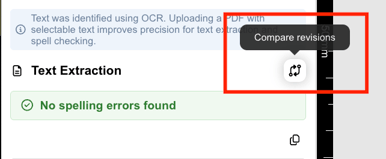 You can compare extracted text across different artwork revisions to quickly identify content changes.
Text differences such as additions, removals, or modifications are highlighted, making it easier to review updates in product information, ingredients, claims, or regulatory text.
OCR and Embedded Text
Text extraction works in two ways:
-
If the PDF contains embedded (selectable) text, the system reads the text directly.
-
If the file is flattened or scanned, OCR (Optical Character Recognition) is used to detect text.
For the highest spell check accuracy, we recommend uploading PDFs with embedded live text whenever possible.
OCR provides strong results, but embedded text offers greater precision.
Important Notes
-
Text extraction does not modify the original artwork file.
-
Spell checking highlights potential errors but does not automatically change text.
-
Manual extraction is only required for older artworks.
-
The Text tab checkmark indicates successful processing without issues.
Troubleshooting
If text does not appear:
-
Ensure the file has finished processing
-
If the artwork is older, manually start extraction
-
Confirm that the file contains readable text (extremely low-resolution scans may affect OCR quality)
If spelling is marked incorrectly, use the X button to dismiss the suggestion.