
Tasks in Cway help you quickly see the status of artworks and identify where action is needed. They are shown as colored circles next to each artwork and give you a simple, visual overview of your project’s progress.
What Tasks Represent
Each Task circle reflects the current state of the artwork:
🔴 Red – You have a task pending. Action is required on your part.
🟢 Green – No action required on your behalf. The artwork is complete or approved.
🔵 Blue – The artwork has been delivered and downloaded by the repro or printer.
⚫ Grey – The artwork has not been started yet.
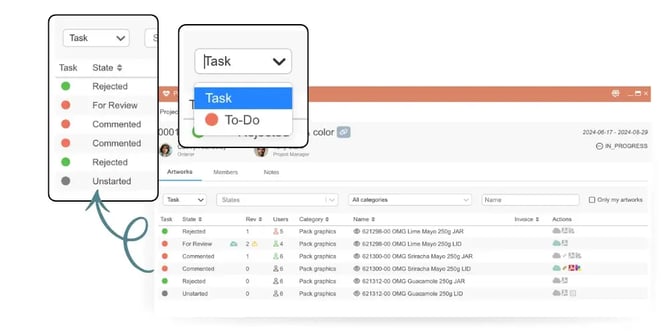
Sorting and Filtering Tasks
To make project tracking even easier, you can now sort and filter artworks by their Task colors:
-
Go to the Artworks tab.
-
Use the Tasks column to filter by color or status.
-
This helps you focus on the items that need attention first — for example, all artworks marked with a red circle.
Why Tasks Matter
Tasks give you a quick, visual summary of project progress without needing to open each artwork. They help teams stay on top of pending actions, ensure timely approvals, and keep workflows moving efficiently.