3 min read

How to view PSD files without Photoshop in 2026 – the ultimate guide

How to view PSD files without Photoshop in 2026 – the ultimate guide
How to View PSD Files Without Photoshop (15+ Easy Ways) | 2026
6:24

PSD (Photoshop Document) files contain layers, masks, text, and smart objects that standard image viewers can’t handle. If you don’t have Adobe Photoshop, opening or previewing a PSD file can be frustrating.

In this guide, you’ll learn how to view PSD files without Photoshop in 2026. We cover quick preview options, free online tools, desktop software, and professional viewers—so you can choose the fastest and safest way to open a PSD file based on your needs.

Why PSD Files Need Special Viewers

A PSD file format keeps every design layer, mask, text frame, and smart object intact. Standard image viewers flatten these layers, so you lose editability and sometimes even transparency. That’s why you need a PSD-aware tool—either for quick previews or deep edits.

How to View PSD Files Without Photoshop

There are several ways to open or preview PSD files, depending on whether you need a quick look, light edits, or professional review. Below are the most common and reliable options.

Quick PSD File Viewers (Fast Preview Only)

If you just need to see what’s inside a PSD file, these tools are the fastest option.

Tool

Platform

Layer Support

Best For

macOS Preview

macOS

❌ Flattened

Quick viewing on Mac

Windows Explorer

Windows 10/11

❌ Thumbnails

Fast file browsing

Google Drive Preview

Browser

❌ Flattened

Sharing & quick checks


Free Online Editors (No Install Needed)

Online tools are useful when you don’t want to install software or need quick access from any device.

Tool

Key Strengths

Notes

Photopea online PSD editor

Closest Photoshop clone in browser; edits layers, masks, text.

Laggy on > 200 MB files. 

Aspose / GroupDocs Online Viewer

Instant render + export to PNG/JPEG/GIF.

View-only; no layer edits. 

PSDViewer.org

Drag-and-drop, quick export.

100 MB cap. 


Desktop Software That Can Open PSD Files

If you prefer offline tools or need better performance with large files, desktop software may be a better choice.

Software

License

PSD Fidelity

Stand-out Feature

Affinity Photo 2

One-time fee

~100 % layers

Live filter layers; CMYK print support

Corel PaintShop Pro 2025

Perpetual

High

AI object removal

Adobe Photoshop (Creative Cloud)

Subscription

100 %

Industry standard

GIMP (Free)

  • Open-source Photoshop alternative

  • Supports many PSD features

  • Available on Windows, macOS, and Linux

Note: Some advanced PSD effects may not render perfectly.


Professional PSD Viewing for Teams (No Editing Required)

In team environments, not everyone needs to edit PSD files. Often, stakeholders just need to review layouts, check copy, or approve changes.

Dedicated PSD viewers allow teams to:

  • Inspect layers without modifying files

  • Compare versions

  • Leave comments or feedback

  • Avoid accidental edits

Some professional platforms include built-in PSD viewers designed specifically for review and approval workflows rather than design work.

When Do You Need a PSD Viewer Instead of Photoshop?

Many people need to open PSD files without Photoshop because:

  • They don’t have an Adobe subscription

  • They only need to review or approve designs

  • They work in marketing, legal, or product teams

  • They need secure, read-only access

  • They’re reviewing files on mobile or remotely

  • PSD files are too large for full design software

In these cases, a lightweight viewer is often faster and safer than a full graphics program.


Viewing PSD Files in Team Workflows

Not everyone who receives a PSD file needs to edit it. In many teams, stakeholders only need to view designs clearly, check copy, compare versions, or leave feedback—without risking accidental changes.

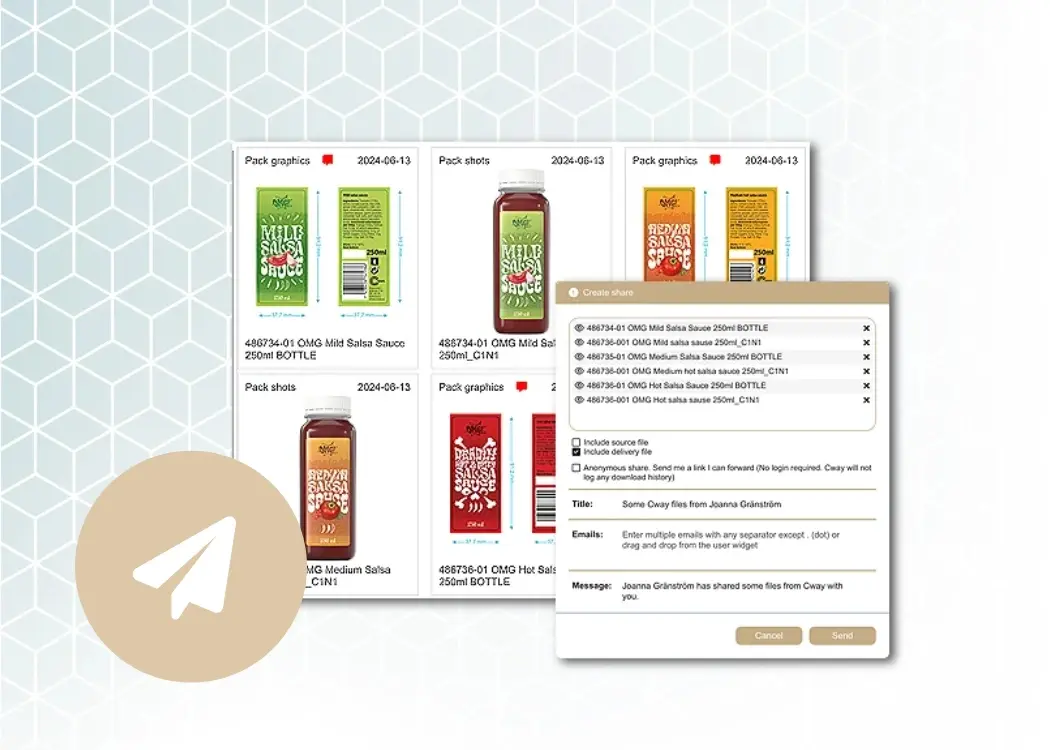
For these situations, team-based PSD viewers are often more practical than full graphic software. They allow multiple reviewers to inspect files, comment in context, and track changes without installing design tools.

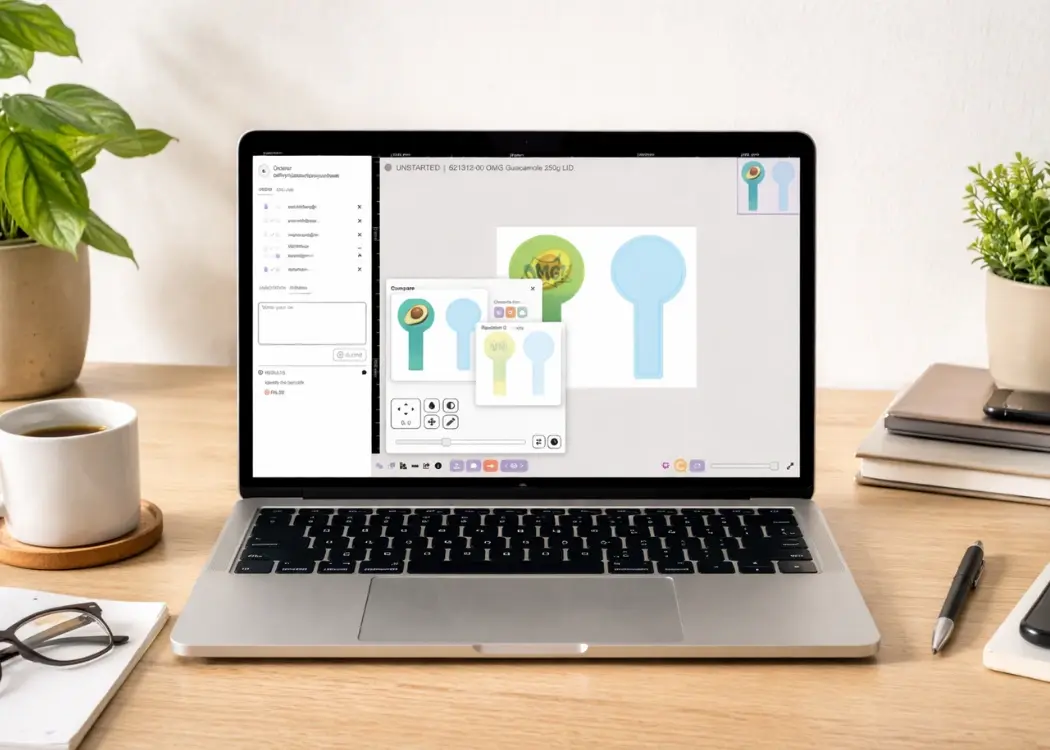
Cway is an example of a platform built for reviewing and approving artwork at scale. Its built-in viewer allows teams to open and inspect PSD files in the browser, compare versions, and leave comments directly on the artwork—without requiring Photoshop or other graphic software.

The Cway Viewer supports common production and design formats, including PSD, AI, PDF, EPS, TIFF, and PSB files, making it suitable for complex, layered artwork rather than flat previews.

If you regularly review PSD files as part of a team workflow, using a dedicated viewer can help keep feedback organized, reduce errors, and avoid unnecessary software access for non-designers.

How to Choose the Right PSD Viewing Option

Ask yourself:

  • Do I need to edit the file or just view it?

  • Is this a one-time preview or part of a regular workflow?

  • How large are the PSD files?

  • Do multiple people need access?

  • Is security or version tracking important?

For quick checks, online viewers are enough.
For repeated reviews or large files, desktop or professional viewers work better.


FAQ


Reviewing PSD files with a team?

Explore how collaborative viewers help streamline feedback and approvals.


How to send large files by email (without size limits)

How to send large files by email (without size limits)

Need to send files larger than 25MB by email? You’re not alone. Gmail, Outlook, and most email services impose strict attachment limits, making it...

View Full Article
Why approve packaging designs via email is ineffective

Why approve packaging designs via email is ineffective

This article will explain why email is the least effective method for approving packaging designs and explore better alternatives that streamline the...

View Full Article
Side-by-side packaging artwork comparison—simplified with Cway®

Side-by-side packaging artwork comparison—simplified with Cway®

Ever tried approving packaging artwork by email? It's a game of "Which version are we on again?" followed by "Oops, that wasn’t the final one"—and...

View Full Article